Electronic Accessibility: Making Digital Content Work for Everyone

Electronic accessibility is the practice of designing digital technology so that people with disabilities can perceive, navigate, and interact with it, no barriers, no separate second-class version. If your organization ships websites, sends email, or publishes documents, this is the working knowledge you need, and the short list of things to actually do about it.
What electronic accessibility actually means
At its simplest, electronic accessibility, often called digital accessibility, means your digital touchpoints are usable by people with disabilities. That covers web pages and mobile apps, but it does not stop there. It reaches software, document formats like PDFs and slide decks, audio, video, email, and anything else delivered through a screen. The goal is equal access to the same information, services, and experiences everyone else gets, in the same place, not a stripped-down side door.
Physical accessibility is the useful analogy. Ramps stand in for stairs, elevators serve people who cannot climb, Braille signage aids navigation, captioned announcements reach people with hearing loss. Electronic accessibility runs the same logic in software: alt text stands in for visual-only images, keyboard operation stands in for mouse-only interfaces, captions stand in for audio-only messages.
None of this is optional. It is a legal requirement under the UK Equality Act 2010 and the Americans with Disabilities Act, and the European Accessibility Act took effect across EU member states in June 2025. Section 508 of the Rehabilitation Act covers US federal agencies; the Public Sector Bodies Accessibility Regulations cover UK public sector sites. The people affected are a wide group: visual, hearing, motor, cognitive, and neurological disabilities, plus older adults and anyone with a temporary or situational limitation, a broken arm, a noisy train, a sun-washed screen. Assistive technology, from screen readers to speech recognition to switch devices, only works when the underlying design gives it something to work with.
Why it matters
Start with one number: about one in four US adults reports having a disability. Shutting that group out of your digital services is both a rights failure and a commercial one. Accessible content supports independence and spares people the friction of design that quietly excludes them.
The money is just as concrete. The UK’s Click-Away Pound research put lost revenue at £17.1 billion in 2019, spending that walked away because shoppers with access needs hit an unusable site and left. On the compliance side, the 2024 DOJ final rule under ADA Title II now explicitly requires WCAG 2.1 AA for state and local government web content and mobile apps.
And accessibility features tend to help everyone, not only the people they were written for. Captions let commuters watch video on mute. Transcripts give search engines text to index. Keyboard shortcuts make power users faster. Designing for a genuine range of abilities produces products that are simply better built.
The cost of ignoring it
Skipping accessibility stacks up three risks at once: legal complaints and lawsuits, reputational damage when the exclusion becomes public, and the quiet loss of audiences you needed, students, customers, community members, and employees whose needs went unmet.
The standards: POUR and WCAG
Modern web accessibility rests on the POUR framework, four properties every interface should have:
- Perceivable. Users can detect the content, for example captions on a training video.
- Operable. Users can work every feature, which means keyboard navigation has to do everything a mouse can.
- Understandable. Content is clear and predictable; consistent navigation lowers the cognitive load for everyone.
- Robust. Content holds up across browsers and assistive technologies, now and as they change. Semantic HTML is how you get there, because it hands real structure to a screen reader instead of a wall of undifferentiated markup.
The Web Content Accessibility Guidelines (WCAG) turn those principles into testable criteria, and nearly every accessibility law on earth points back to them. WCAG 2.1 became a W3C recommendation in June 2018, and WCAG 2.2 followed in October 2023, adding criteria for target size, accessible authentication, and more. WCAG 2.2 AA is the usual compliance target, and its criteria apply across web pages, forms, learning platforms, and documents alike.
Regional standards mostly wrap WCAG rather than replace it. In the EU, EN 301 549 harmonizes accessibility requirements for ICT procurement and references WCAG directly; US Section 508 maps to it too. For most organizations, an accessibility policy is really just a commitment to meet WCAG on every platform you run.

It applies to every content type, not just the website
Accessibility covers everything your organization publishes. Here is how the requirements break down by format.
Websites
The fundamentals carry most of the weight: a meaningful heading structure, contrast ratios that clear WCAG’s ≥ 4.5:1 for normal text, alt text on images, keyboard-operable forms, and interactive elements that are properly labeled. Users should be able to zoom without losing content or being forced into horizontal scrolling. Most barriers on corporate and university sites trace straight back to these basics.
Social media
X, Facebook, LinkedIn, Instagram, and TikTok all offer alt-text fields and automatic captioning, but someone has to turn them on and check them. Write hashtags in CamelCase (#AccessibilityMatters) so screen readers can parse the words, add real image descriptions, and never lock essential text inside an image.
Video and audio
Closed captions carry the audio for people who cannot hear it; audio descriptions narrate the visuals for people who cannot see them. Transcripts turn spoken content into text, which is what makes recorded lectures, webinars, and podcasts usable and, as a bonus, indexable. Podcasts get skipped here more than anything else, so start there if you are behind.
Electronic documents
A PDF is accessible only when assistive technology can read it. Use true text rather than scanned images, tag headings and tables, write descriptive link text, and build from accessible templates in Word and PowerPoint. Screen readers navigate by structure, so an untagged document is effectively invisible no matter how clean it looks. Every document you publish, from a one-page flyer to a 200-page report, should clear that bar.
Email and newsletters
Use semantic structure, meaningful subject lines, descriptive call-to-action buttons, and adequate contrast. Avoid image-only layouts, which collapse the moment images are blocked or the client renders them differently.
Common barriers, and how to remove them
A barrier is any design or technical choice that stops someone from finishing a task, applying for a service, buying something, reaching a resource. Here are the usual ones, with the fix.
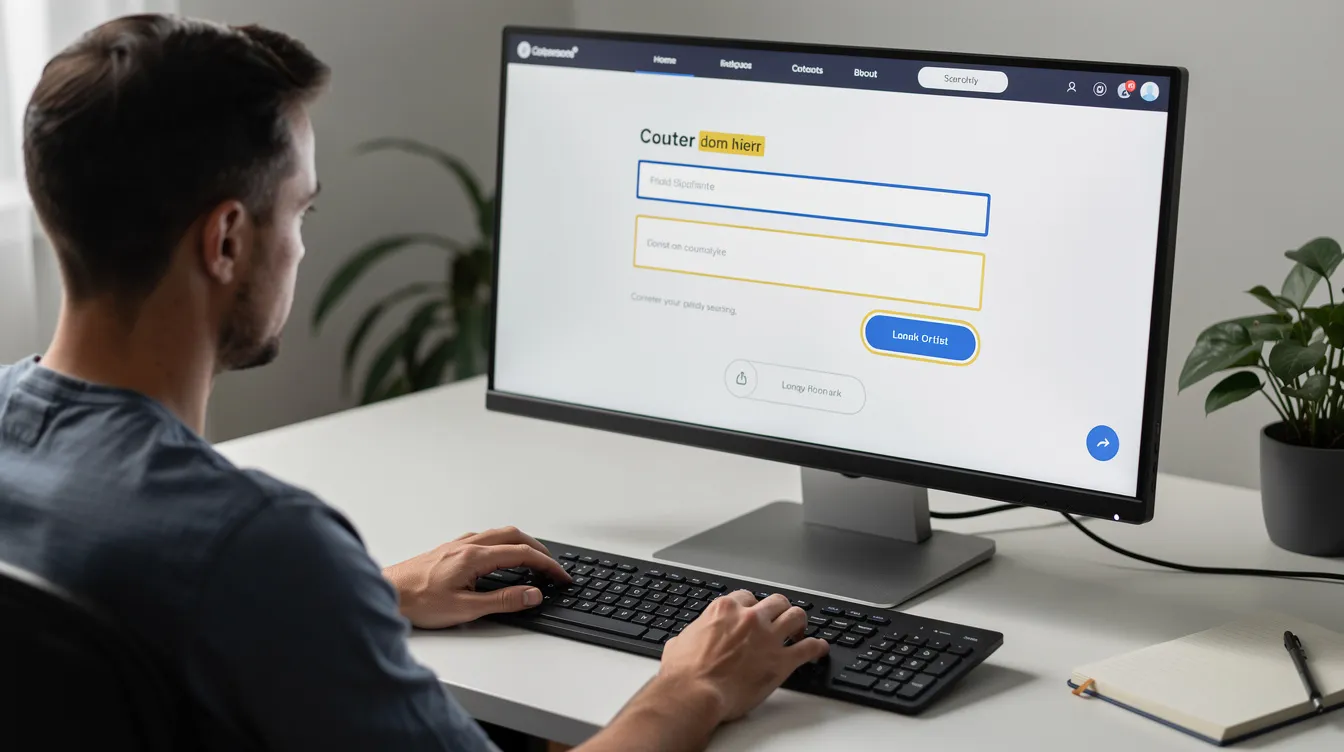
Visual barriers
Poor contrast, missing alt text, and text baked into images are the most common failures. A campus event flyer posted only as a low-resolution image in early 2024 was unreadable to any student relying on a screen reader. Fix: hold WCAG contrast ratios, always ship alt text, and keep text as live, scalable content.
Hearing barriers
Uncaptioned video, untranscribed podcasts, and audio-only alerts shut out people who are deaf or hard of hearing. A 2025 policy-update video with no captions left staff unable to follow information they were accountable for. Fix: caption every video, transcribe every audio file, and pair audio alerts with an on-screen cue.
Motor and keyboard barriers
Drag-and-drop-only interactions, tiny click targets, and mouse-dependent forms exclude people with limited motor control. An HR onboarding portal that accepts uploads only by drag-and-drop blocks anyone who cannot use a mouse. Fix: make every interactive element keyboard-operable, give targets enough size, and offer an alternative input path.
Cognitive and neurological barriers
Dense text, inconsistent navigation, autoplaying media, and gnarly CAPTCHAs create confusion and fatigue, and they hit people with cognitive disabilities hardest. Fix: clear headings, plain language, predictable layouts, and accessible verification such as email-based authentication. Test both ways, too: automated tools catch contrast and missing labels, but only human review catches the rest.
Whose job is this? Everyone’s
Accessibility is shared across every role that touches a digital product. Developers write semantic markup. Designers pick usable palettes and visible focus styles. Content creators add alt text and descriptive headings. Faculty tag their PDFs and slide decks and caption their lecture video. Communications teams check that social posts meet the guidelines. IT selects platforms that support accessibility, and administrators set procurement standards so third-party tools clear the same bar.
The most useful habit is to shift left: plan for accessibility at the start of a project, a redesign, a new document template, a one-page form, instead of retrofitting it later at several times the cost. You can start today with small moves, run the built-in checkers in Microsoft 365 and Google Workspace, keyboard-test your most-visited page, invite people with disabilities to review a key service. Equal access is not a one-time project; it is an ongoing practice you build into publishing workflows and checklists, and treat exactly like security or brand compliance, something everyone owns.
Start here
Pick one thing, a single page, one document, or one video. Test it, fix what you find, and move to the next. Momentum beats a perfect plan you never start.
Start your project
Related Articles

Mobile-First Design Principles
Designing for the smallest screen and the widest range of contexts first, then scaling up.

Minimal, Fast, and Sustainable UX
Leaner layouts and fewer heavy scripts make experiences calmer, faster, and easier to use for everyone.
Want a site that works for everyone?
Accessible markup, real keyboard support, sufficient contrast, and content assistive tech can actually read, built in from the first commit, not bolted on later. Let’s build it.